

Linked Helper is a powerful tool to automate your LinkedIn prospecting. This tutorial covers all the information from the PDF provided (text and screenshots), so you will know how to set up your account, create targeted campaigns and optimize your actions to generate quality leads. Complement this strategy with our web SEO strategy services to maximize your online visibility.
1. Logging in to Linked Helper
To get started, you need to link your LinkedIn account to Linked Helper so the tool can act on your behalf.
Steps:
-
1.1 Open Linked Helper
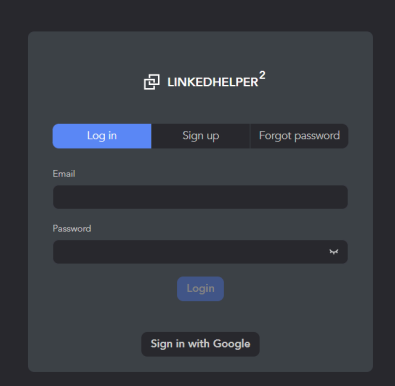
Open the Linked Helper app on your computer and click “Log in”. -
1.2 Link your LinkedIn account
In “Linkedin Accounts”, click “+ Add account”, enter your LinkedIn email and password, then follow the instructions to authorize access.
Practical tip: use a secondary LinkedIn account to protect your main account from restrictions.
2. Creating a campaign
A campaign groups a sequence of automated actions. Create a new one to structure your prospecting.
Steps:
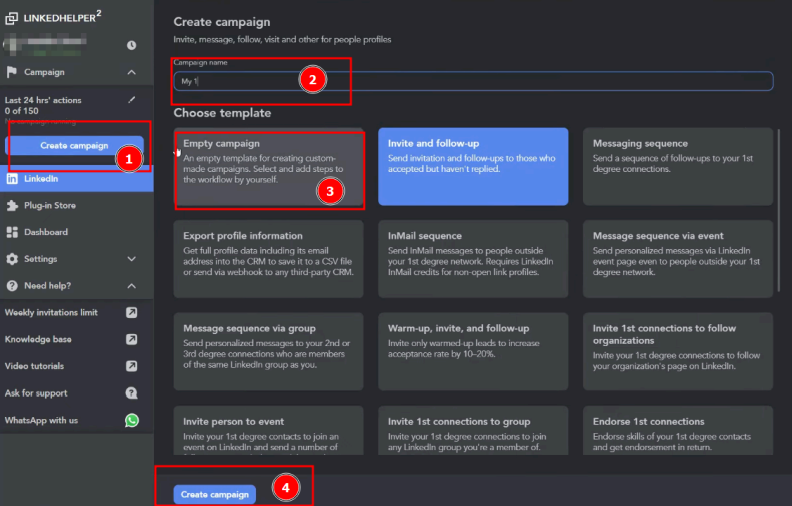
- 2.1 Click “Create campaign”
-
2.2 Name the campaign
Give it a clear name (e.g. “Insurance brokers prospecting”). -
2.3 Choose the campaign type
Select “Empty campaign” so you can add the actions you want manually. -
2.4 Confirm the creation
Click “Create campaign” again to open the editing interface.
3. Selecting the action flow
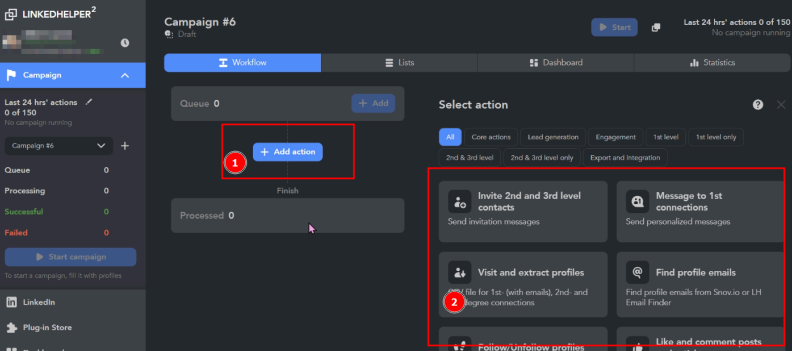
For optimized non-premium prospecting, add the following in order:
-
Action 1: Invite 2nd and 3rd level contacts
Sends invitations to contacts outside your direct circle to turn them into 1st-degree connections. -
Action 2: Filter contacts out of my network (keep 1st level only)
Filters the profiles that accepted the invitation to prepare for sending messages later. Set the check interval between 10 and 60 minutes depending on your volume. -
Action 3: Message to 1st connections
Once the connection is made, a personalized message is sent automatically, for example “Hello {firstname}, …”.
Tip: To manage your leads, check out our CRM solutions on Fiverr.
4. Adding LinkedIn profiles
Two ways to feed your campaign:
-
Method 1: By profile URL
Copy and paste a LinkedIn profile URL directly into Linked Helper. -
Method 2: Via “Search page”
Run the built-in LinkedIn search, apply your filters (job, location, etc.), then click “Queue > From current page” to import all the results. -
Sorting and refining
After importing, remove irrelevant profiles manually or with filters (industry, job title, company).
5. Launching and optimizing the campaign
Once the actions and profiles are set up:
- Click “Start campaign” to launch the process.
- Monitor the results and adjust:
- Add new profiles as you go.
- Change the message or the timing of actions based on acceptance rates.
- Schedule weekly checkpoints to restart Linked Helper and free up memory, which keeps it running smoothly.
Tip: Track your results with complementary tools such as our Google Ads account rental for retargeting.
Key takeaways
In five steps, you have a complete process to:
- Link and secure your LinkedIn account with Linked Helper.
- Create flexible, targeted campaigns.
- Automate invitations and messages while respecting LinkedIn's limits.
- Refine your prospect database and optimize deliverability.
Mini FAQ
Can I send more than 25 invitations per day?
No, LinkedIn enforces this limit for non-premium accounts; you can, however, alternate accounts or upgrade to premium to raise it.
How do I personalize my messages?
Use dynamic fields (e.g. {firstname}) and adapt your opening line to your target's industry or job title.
How do I avoid being detected as a bot?
Respect daily quotas, add natural pauses, and vary the pace of checks (10 to 60 minutes). If you get blocked, our account unblocking service can help.