

Essential prerequisites:
Before you start, you will need:
- A working Shopify store
- A Google Merchant Center account
- An active Google Ads account
- A Google Shopping feed app, such as Syhrosis
Step 1: Prepare your Shopify store
- Live store: your store must be accessible to the public.
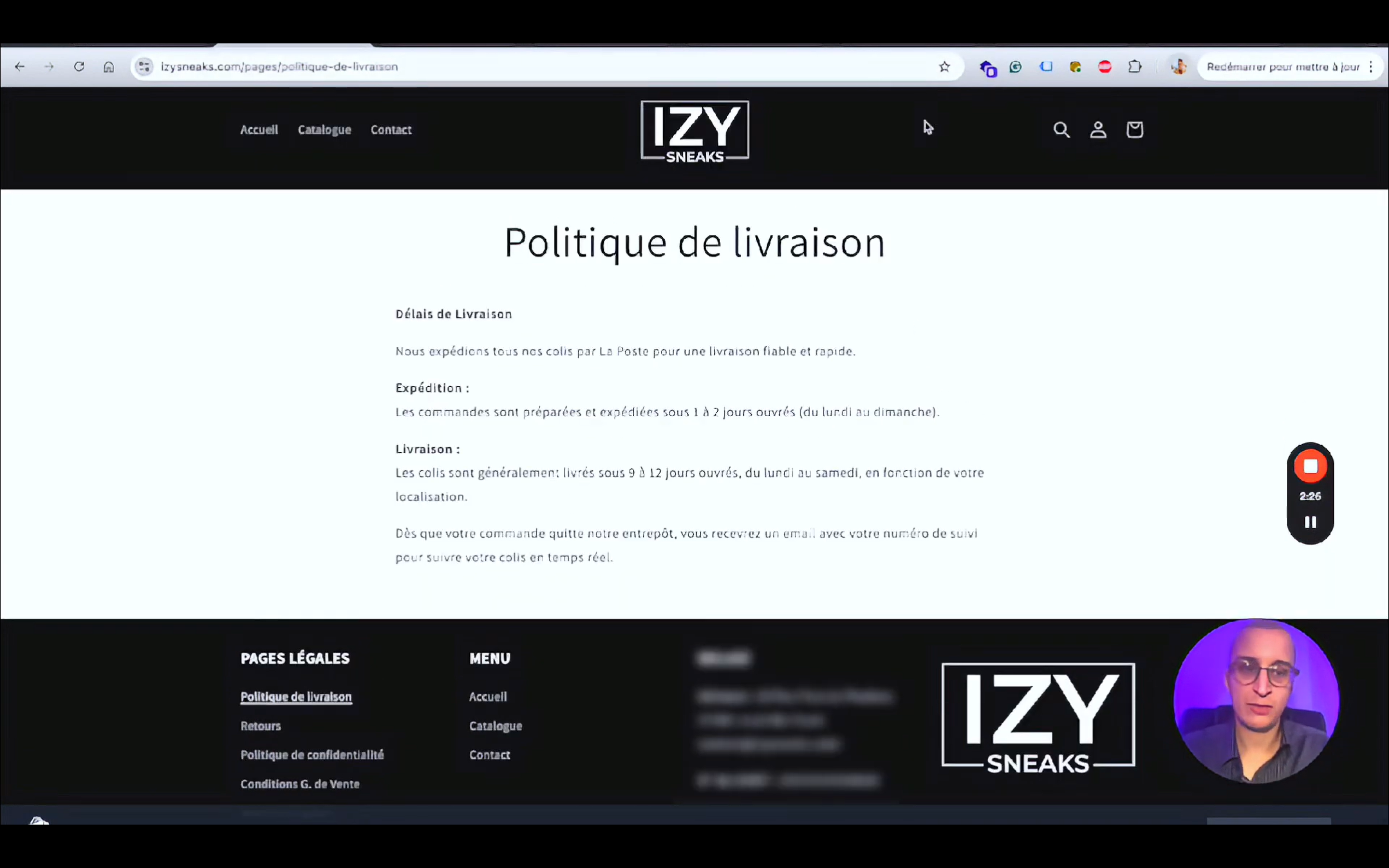
- Complete information: make sure your business address, terms of sale and shipping policy are filled in correctly.
Example of a shipping policy page on Shopify:
Step 2: Set up Google Merchant Center
- Set up your shipping information (carriers, delivery times, etc.).
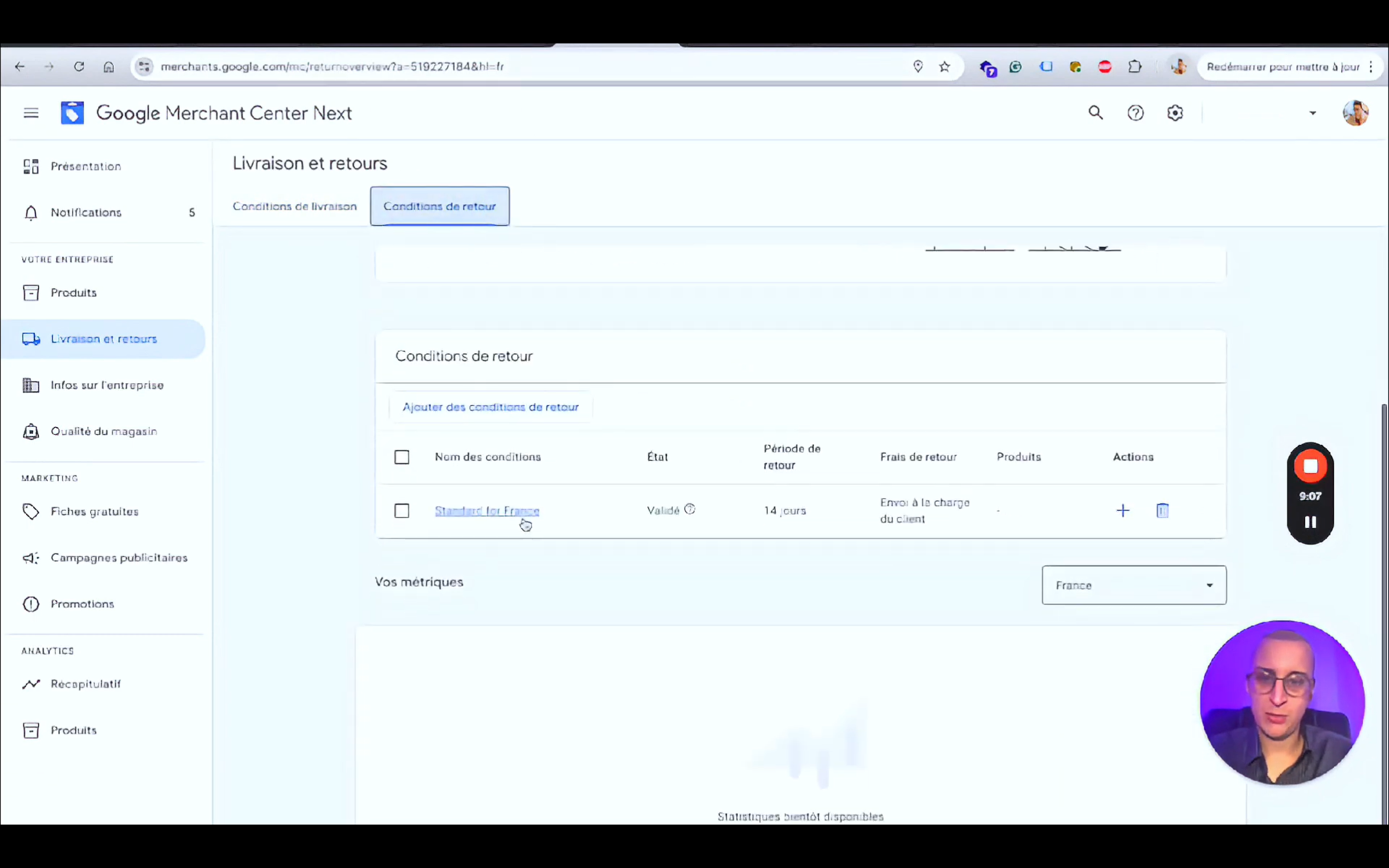
- Add your return policies, with the return window and the link to your dedicated page.
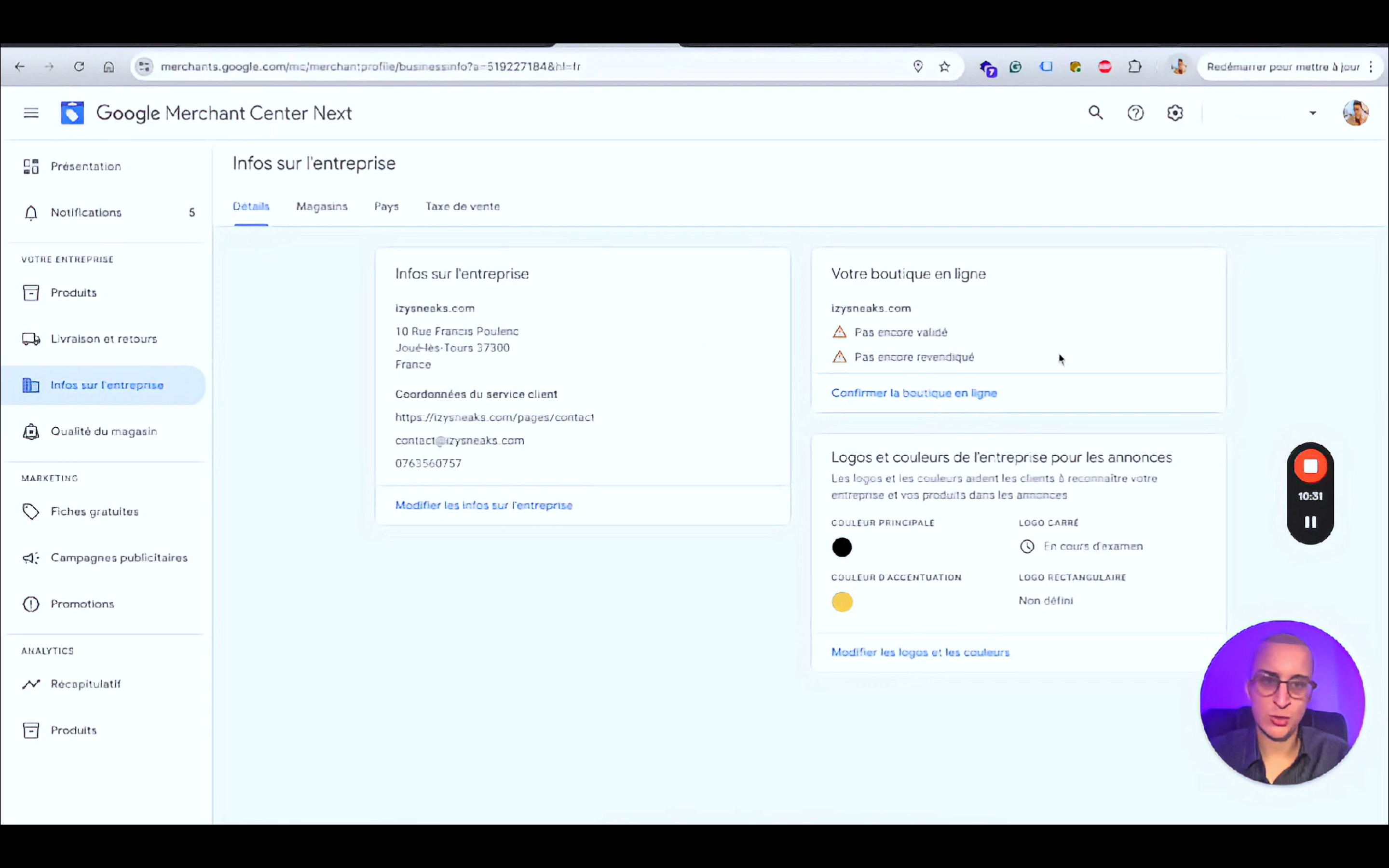
- Fill in your business information.
Google Merchant Center interface:
Step 3: Verify your domain name
You need to verify your domain name in Google Merchant Center by adding a verification code to your Shopify store's theme.
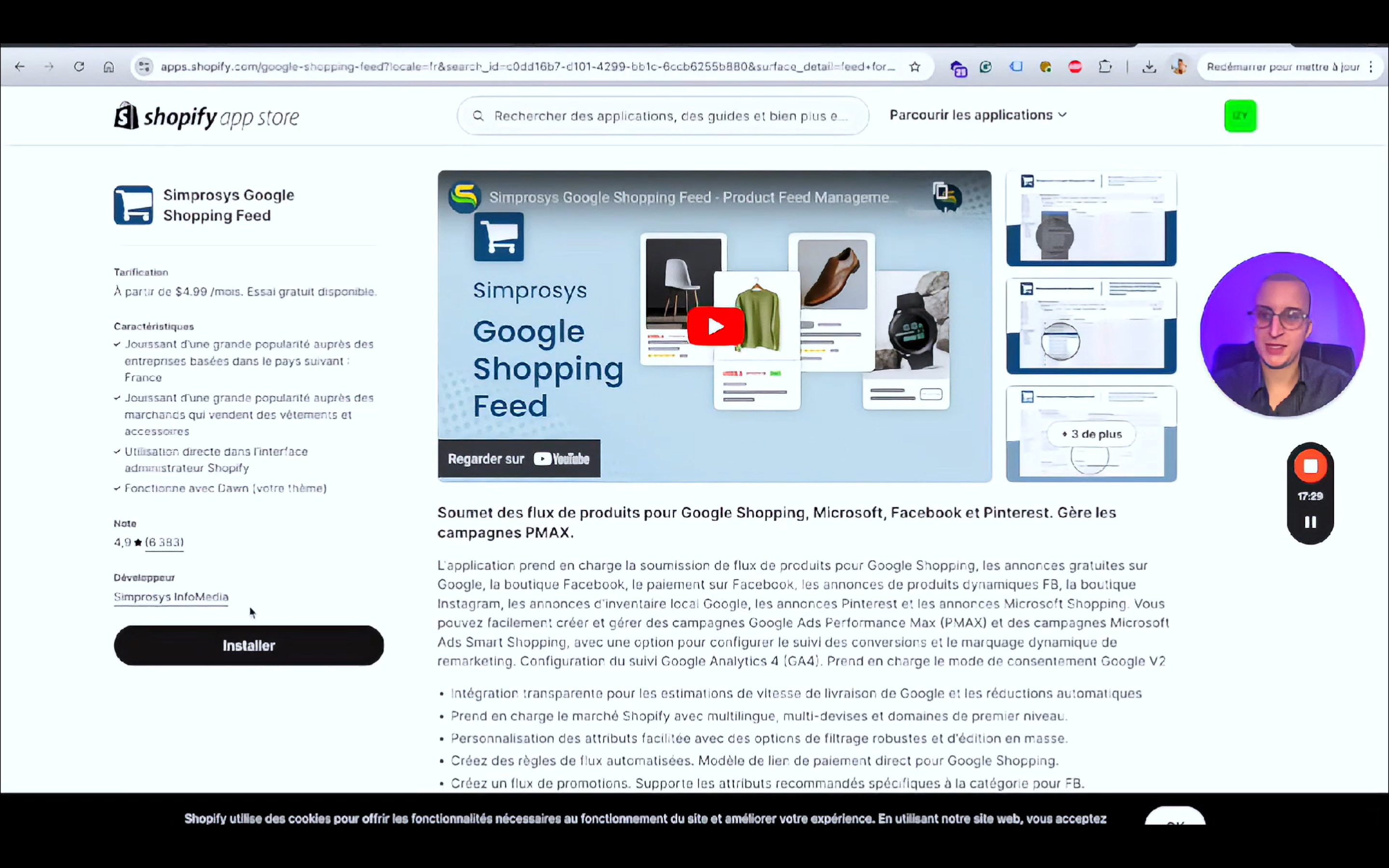
Step 4: Install and configure the Google Shopping feed app
- Go to the Shopify App Store and install the Syhrose Google Shopping Feed app.
- Sign in with the email address linked to Google Merchant Center and Google Ads.
- Paste your Merchant Center ID into the app to sync your products.
An app in the Shopify App Store:
Step 5: Connect Google Ads and set up tracking
- Link your Google Ads account to the app.
- Set up conversion tracking (add to cart, purchases, etc.).
This lets you optimize your advertising campaigns and track their performance accurately.
Google Merchant Center with the tracking information:
Best practices
- Use a professional email address for your accounts.
- Regularly check your product statuses in Merchant Center.
- Stay consistent: all information must match across your Shopify store, Merchant Center and Google Ads.
Conclusion
Syncing your Shopify store with Google Merchant Center and Google Ads is an essential step to maximize your visibility and attract highly qualified traffic. By following this guide, you can avoid common mistakes, ensure a successful integration and optimize your campaigns effectively.
Remember to check the status of your product feeds regularly and watch out for inconsistencies that can cause problems with your ads.
Other articles you may be interested in: